Tutorial: build a rune puzzle
This tutorial builds one complete rune puzzle from nothing: a wall that swings open when the player says Rotate + Wall and swings shut on Close + Wall. By the end you have a noun, its rules, a puzzle Blueprint with looks and performances, a world rune, and a placed puzzle you can test in PIE.
The finished result already exists in the project, so you can open it side by side while you work:
Content/Rephrased/Gameplay/Runes/Nouns/DA_MuralWallContent/Rephrased/Gameplay/PuzzleDevices/BP_Puzzle_MuralWall
Each step names the reference page with every field, if you want more depth.
Before you start
- Sync latest and start an assigned task in a numbered changelist.
- Confirm the noun's row in the current rune type matrix: its states and what each verb does to each state.
- Build in your personal folder,
Content/Developers/<Discipline>/<Name>/, and move the assets into the shared folders once they work.
For this tutorial the matrix row is:
| State | Rotate | Close | Freeze |
|---|---|---|---|
| Closed | → Open | stays, stops motion | |
| Open | → Closed | stays, stops motion |
1. Create the noun
A noun is a Rune Data Asset with Word Type set to Noun.
- In the Content Browser, right-click and choose Miscellaneous → Data Asset, then pick Rune Data Asset.
- Name it
DA_<Noun>, for exampleDA_SwingWall, inContent/Rephrased/Gameplay/Runes/Nouns/(or your personal folder while you work). - Open it and fill in the Word category:
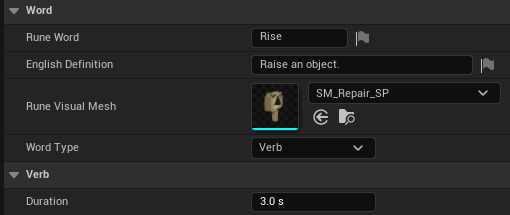
- Rune Word: the word the player sees, exactly as the matrix spells it.
- English Definition: the one-line meaning shown in the rune definitions view.
- Rune Visual Mesh: the word's rune mesh, shown on its pedestal, as the drawn rune, and on a world rune whose Visual has no mesh of its own.
- Word Type: Noun. This reveals the Rules category.
Verbs are Rune Data Assets too, with Word Type set to Verb; the existing ones live in Runes/Verbs/. A verb carries one extra field, Duration, for effects that last a while, such as how long Rise holds an object up.
More detail: Adding a noun, Adding a verb.
2. Give the noun its states and rules
Every state is a Status.* gameplay tag, and a combined state is a set of tags such as Broken + Open. This noun uses Status.Closed and Status.Open, which already exist. To add a new tag, follow Authoring a new status tag.
In the noun's Rules category:
- Set Default Status to
Status.Closed. Placed walls start here. - Add one Rules row per matrix cell. Each row has:
- Verb: the verb data asset, picked from a dropdown.
- From Status: the exact state the wall must be in.
- To Status: the exact state after the command.
- Stops Motion: ticked only for Freeze.
- Add these four rows:
| Verb | From Status | To Status | Stops Motion |
|---|---|---|---|
DA_Rotate |
Closed | Open | |
DA_Close |
Open | Closed | |
DA_Freeze |
Closed | Closed | ✓ |
DA_Freeze |
Open | Open | ✓ |
Each row titles itself as you fill it in, and the read-only States line lists every state the rules use. The Door's rules look like this:
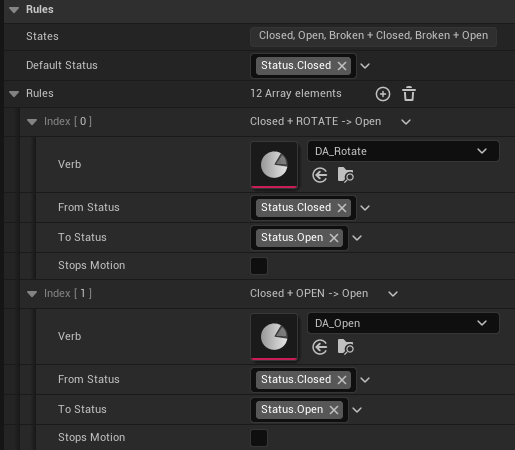
A command in a state with no row is rejected with feedback, so leaving a cell empty is how you say "this does nothing". A cell whose effect only lasts a while, like Rise, goes under Temporary Rules instead.
Save, then right-click the asset and choose Asset Actions → Validate Assets. Validation reports two rows for the same cell.
3. Create the puzzle Blueprint
The object the player sees is a puzzle device: a Blueprint child of Rune Puzzle Actor.
- Right-click in
Content/Rephrased/Gameplay/PuzzleDevices/and choose Blueprint Class. Under All Classes, pick RunePuzzleActor. Name itBP_Puzzle_<Noun>. - Open it and add the visual components under Scene Root. For the wall, add one Static Mesh component named
WallMesh. Place its pivot on the hinge side, so rotating it swings the wall. - Select the Runeable Object component and set Noun to your data asset. Leave Status empty, so placed walls start in the Default Status.
- Select Command Collision and size the box around the part of the wall the command orb should reach.
Once the noun is set, the puzzle shows its noun's word in red above it in the editor, so you can tell puzzles apart at a glance. In play the label appears with the rune definitions when you press G. The label sits above the top of the main mesh and keeps its size and shape on a scaled puzzle; Label Height in the Puzzle category sets the gap.
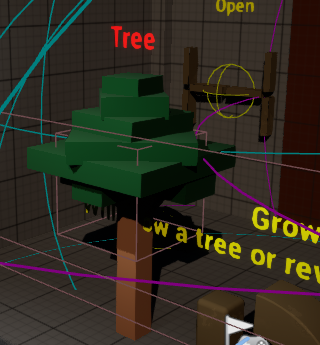
Everything else lives in the Puzzle category, shown when you click Class Defaults.
More detail: Adding a puzzle device.
4. State Looks: how each state looks
Add one State Looks row per state. Each row has a Status and a list of Parts, one per component that differs in that state. The row titles itself with its state.
For the wall:
- Row Closed: Status
Status.Closed, no parts. The wall stays as authored. - Row Open: Status
Status.Open, one part: - Target:
WallMesh, picked from a dropdown of the puzzle's components. - Tick Rotation and set yaw to
90.
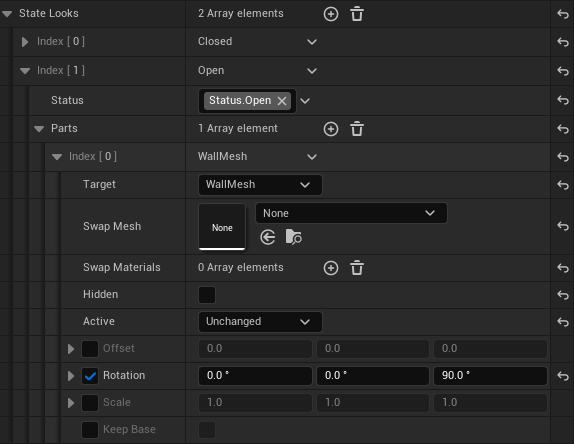
A part can also replace the target's mesh or materials with Swap Mesh and Swap Materials, hide the target and turn its collision off with Hidden, switch it on or off with Active (lights, Niagara, any component), or set an Offset or Scale. Offsets, rotations and scales are measured from the authored pose.
Whenever the state changes, and when a checkpoint loads, the puzzle snaps to its state's row.
5. Performances: what plays on the way there
State Looks say where the wall ends up; a Performance says how it gets there. Add one per result:
- To Status
Status.Open, tick Animate to Look, set Animate Part toWallMesh, and set Animate Duration to1.0 s. - To Status
Status.Closed, the same settings.
Animate to Look animates from the pose before the change into the new state's look, so the wall swings the 90° set in step 4 over one second. Rows title themselves, for example Enters Open: Animate.
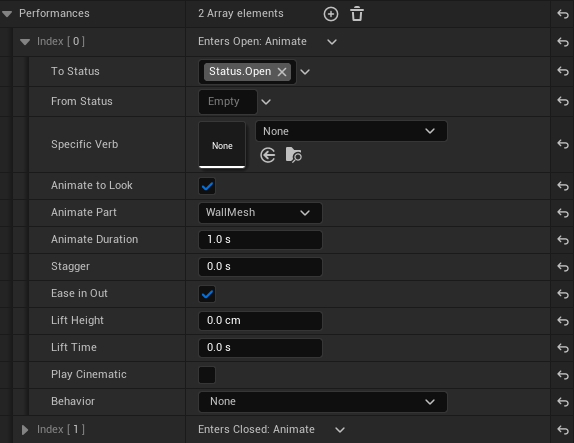
Ticking Animate to Look shows its settings: Animate Part, Animate Duration, Stagger, Ease in Out, Lift Height, and Lift Time. Animate Part set to All Parts animates every part the look moves; naming one, as here, animates only that part.
A performance matches on To Status. Fill in From Status or Specific Verb only when two ways into the same state should play differently; otherwise every rule that reaches the state shares the performance. A performance can also carry a Behavior with its own numbers, picked from Move, Rotate, Rise (Temporary), and Swap Mesh; see Puzzle rules and behaviors.
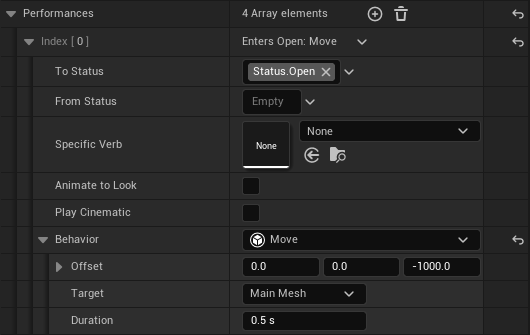
One performance plays at a time. Freeze lands in the middle of any movement and stops it where it is; the wall keeps its state and swings again on the next command.
6. More parts and a cinematic
This wall needs only its mesh, so skip this step for the tutorial. A puzzle with more parts carries them all as components of its Blueprint:
- Add a component for each part under Scene Root, for example a spot light named
Bulband four meshes namedBrokenPiece1toBrokenPiece4. - Use the component name as a Target in State Looks, for example a part on
Bulbwith Active set to On, or a part onBrokenPiece1in every look. A broken piece poses itself: it keeps the pose it is placed in while the state is Broken and sits on the main mesh in the others. - Add a performance on the repair result and tick Animate to Look. It blends the parts back to their looks, so the pieces fly together. Set Lift Height and Lift Time to make them rise before they fly.
BP_Puzzle_Light carries Bulb and BrokenPiece1 to BrokenPiece4; BP_Puzzle_Door carries BrokenPiece1 to BrokenPiece4.
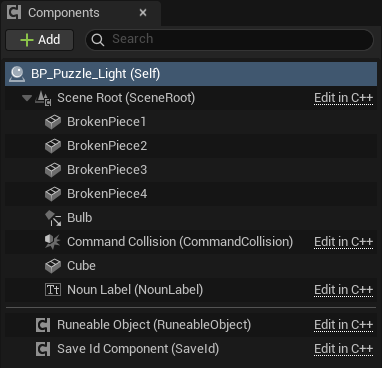
To get pieces without modeling any, select the placed puzzle and press Break Mesh Into 4 Pieces in its Puzzle category. Set its Status to a broken state and move the pieces where they should lie; see Adding a puzzle device.
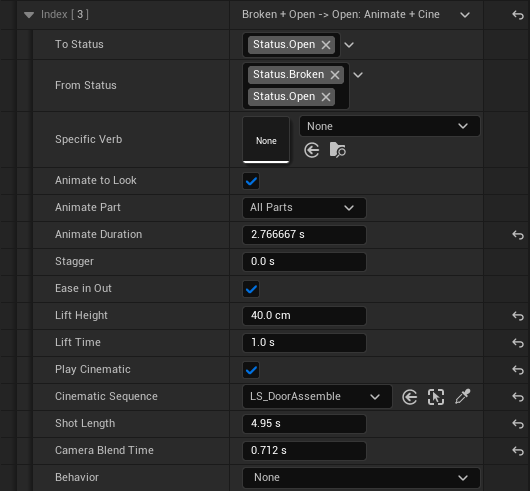
A puzzle that plays a real cinematic on repair also ticks Play Cinematic on that performance. On the placed copy, set the row's Cinematic Sequence to a Level Sequence Actor and Shot Length to the sequence's length. The sequence holds only its camera: the pieces fly together as above while the shot plays, and the view blends back to the player's camera when it ends.
7. The world rune
The player activates words through world runes. If your noun has no world rune yet:
- Create a Blueprint Class with parent WorldRune, named
BP_RuneWord_<Word>, inContent/Rephrased/Gameplay/Runes/WorldRunes/. - Set Rune Data to your noun, and Origin to Physical or Environmental.
- Set its mesh on the Visual component and its glow materials in the Visual category. Size the Interaction Collision, Command Range, and Deactivation Range sphere components; the Ranges category shows or hides each sphere in the viewport.
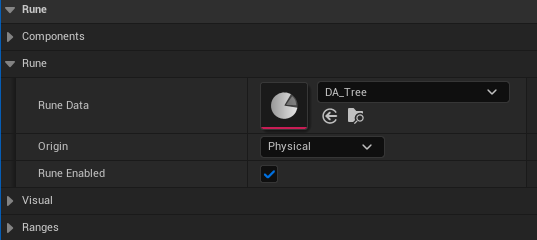
The noun rune's Command Range has to reach the puzzle: the command orb expands from the noun rune and delivers the verb to every matching puzzle it touches.
More detail: Making runes.
8. Place and test
- Drag your puzzle Blueprint into your playground map, and place the world runes for the verb (
BP_RuneWord_Rotate) and your noun within the noun's command range. - Press Play and press G. Each world rune shows its word and definition, and your puzzle shows its noun in red above it.
- Activate Rotate, then your noun. The wall swings open.
- Set the Closed performance's Animate Duration to
5.0 son the placed wall, so there's time to react. Activate Close, then your noun, and while it swings, activate Freeze and your noun. The wall stops where it is. Its state is already Closed, so Rotate swings it open again from where it stopped. Put the Animate Duration back afterwards. - Activate Rotate on the open wall. There is no rule for that cell, so the command is rejected and the wall stays put.
- To test saving, run
Rephrased.Save.WipeOnPlay 0in the console before pressing Play, reach a checkpoint with the wall open, and reload it. The wall comes back open.
Checklist
- [ ] The noun has a Default Status and one rule per supported matrix cell, and validation reports no duplicates.
- [ ] The puzzle has a State Looks row for every state in the noun's States line.
- [ ] Every state the player can reach plays a performance, or snaps on purpose.
- [ ] A performance that plays a cinematic has its Cinematic Sequence set on the placed copy.
- [ ] Data validation on the Blueprint and placed puzzles reports no errors.
- [ ] PIE covers each supported cell, one rejected cell, Freeze mid-swing, and a checkpoint reload.
- [ ] Pressing G shows the puzzle's noun in red above it.
- [ ]
Rephrased.Rune.PROT001andRephrased.Rune.CORE009pass when shared C++ changed. - [ ] Content is submitted through a reviewed changelist.
Related pages
- Making runes: the full rune authoring workflow, including drawn patterns
- Adding a noun, Adding a verb, Adding a puzzle device
- Puzzle rules and behaviors: how rules, looks, and performances fit together
- Rune status catalog: every status tag and every noun's states
Change history
- 2026-10-05 — Gabriel Li — The Target dropdown lists the puzzle's components by name (CORE-011).
- 2026-10-02 — Gabriel Li — Performances animate and play cinematics through the Animate to Look and Play Cinematic checkboxes and narrow by Specific Verb; State Looks parts label their mesh and material fields Swap Mesh and Swap Materials; the broken piece components are named BrokenPiece1 to BrokenPiece4, are placed in the level, pose themselves, and come from the Break Mesh Into 4 Pieces button; a cinematic repair flies the puzzle's own pieces while the sequence moves the camera; the noun label sits above the main mesh and ignores the puzzle's scale. Corrected the Hidden and Animate Duration field names, the Rune Visual Mesh description, and where a world rune's mesh, glow, and range spheres are set; added editor screenshots; the wall steps show the wall's own State Looks and Performances (CORE-011).
- 2026-10-01 — Gabriel Li — Replaced the Linked Actors step with Blueprint components and an optional Cinematic Sequence (CORE-011).
- 2026-09-29 — Gabriel Li — Created the build-a-rune-puzzle tutorial with Details panel screenshots.