Camera tutorial
Author: Jeffery Hu — ping @Jeffery Hu on Discord if anything here is unclear or does not match what you see in the editor.
How to place and tune cameras in a level. No code needed — everything here is done in the editor.
What is a camera zone?
Rephrased uses a fixed high-angle camera. The player never rotates it.
Instead you divide the level into camera zones. Each zone is a box with its own camera. When the player walks into a zone, the camera smoothly becomes that zone's camera.
One zone = one framing for one area.
Where to find it
Content Browser:
Drag it into the level. That is the whole setup.
The three parts you see
Select a zone in the level:
BP_CameraZone
├── ZoneBounds          ← the room this camera covers
│   └── TransitionBounds ← the fade-in area (auto-sized, don't touch)
└── ZoneCamera          ← the camera itself
ZoneBounds
The area where this camera is fully in control. Scale this to cover the space you want this framing for.
TransitionBounds
The fade-in area around it. The camera starts fading in when the player enters this outer box, and is fully switched by the time they reach ZoneBounds.
You never edit this directly. It resizes itself from TransitionBandWidth.
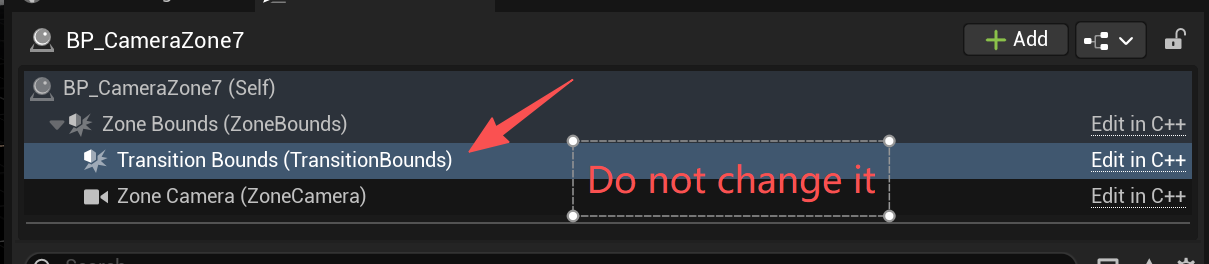
If you move or resize TransitionBounds by hand, your change is thrown away the moment anything else on the zone updates. Change TransitionBandWidth instead.
Here is what the two boxes look like in the viewport:
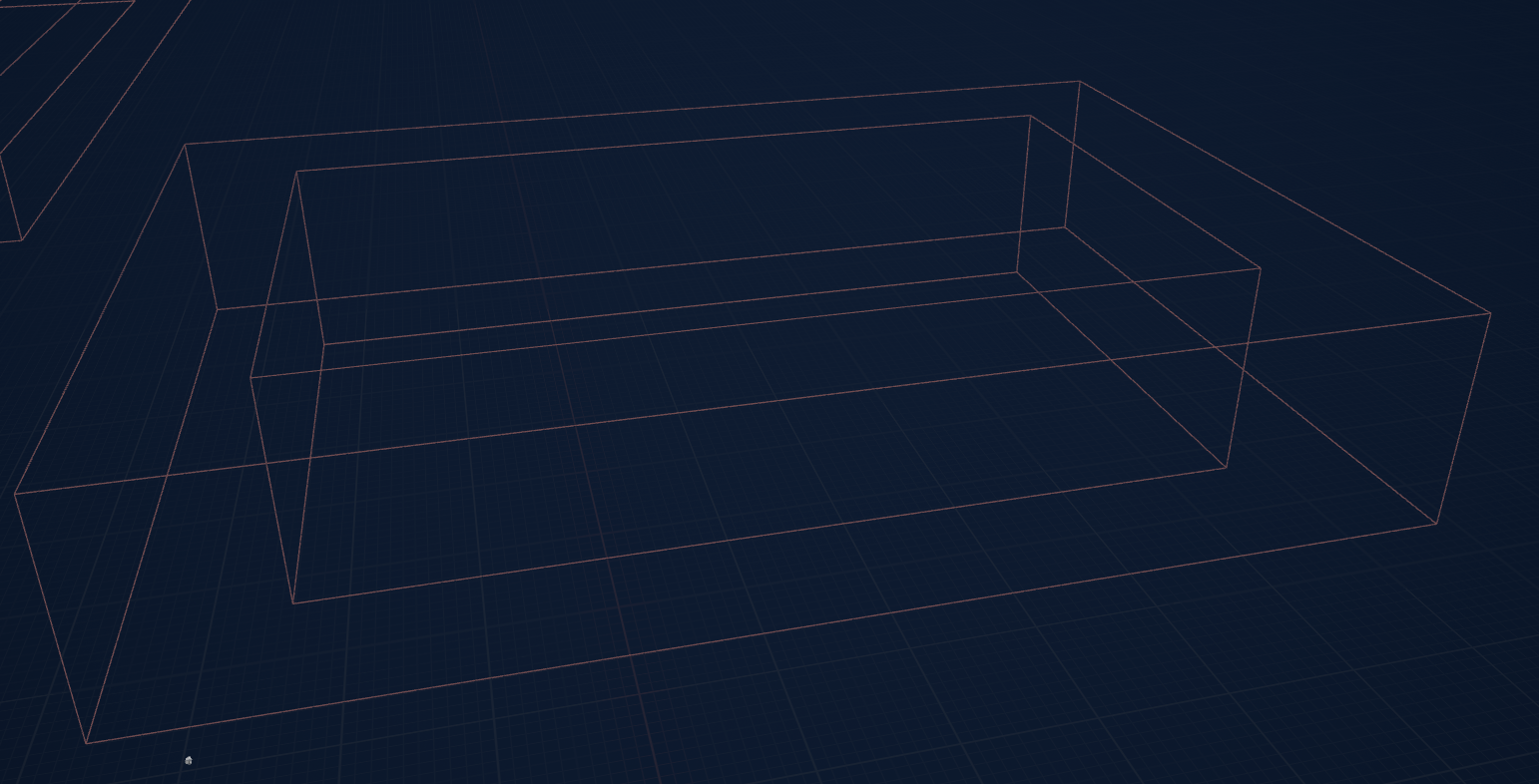
The inner box is ZoneBounds. The outer box is TransitionBounds. The gap between them is where the camera fades in — walking back out fades it out the same way.
ZoneCamera
The actual camera. Move it, rotate it, set its FOV.
Select Zone Camera (ZoneCamera) in the component list. Its position and angle are the Transform section at the top of the Details panel:
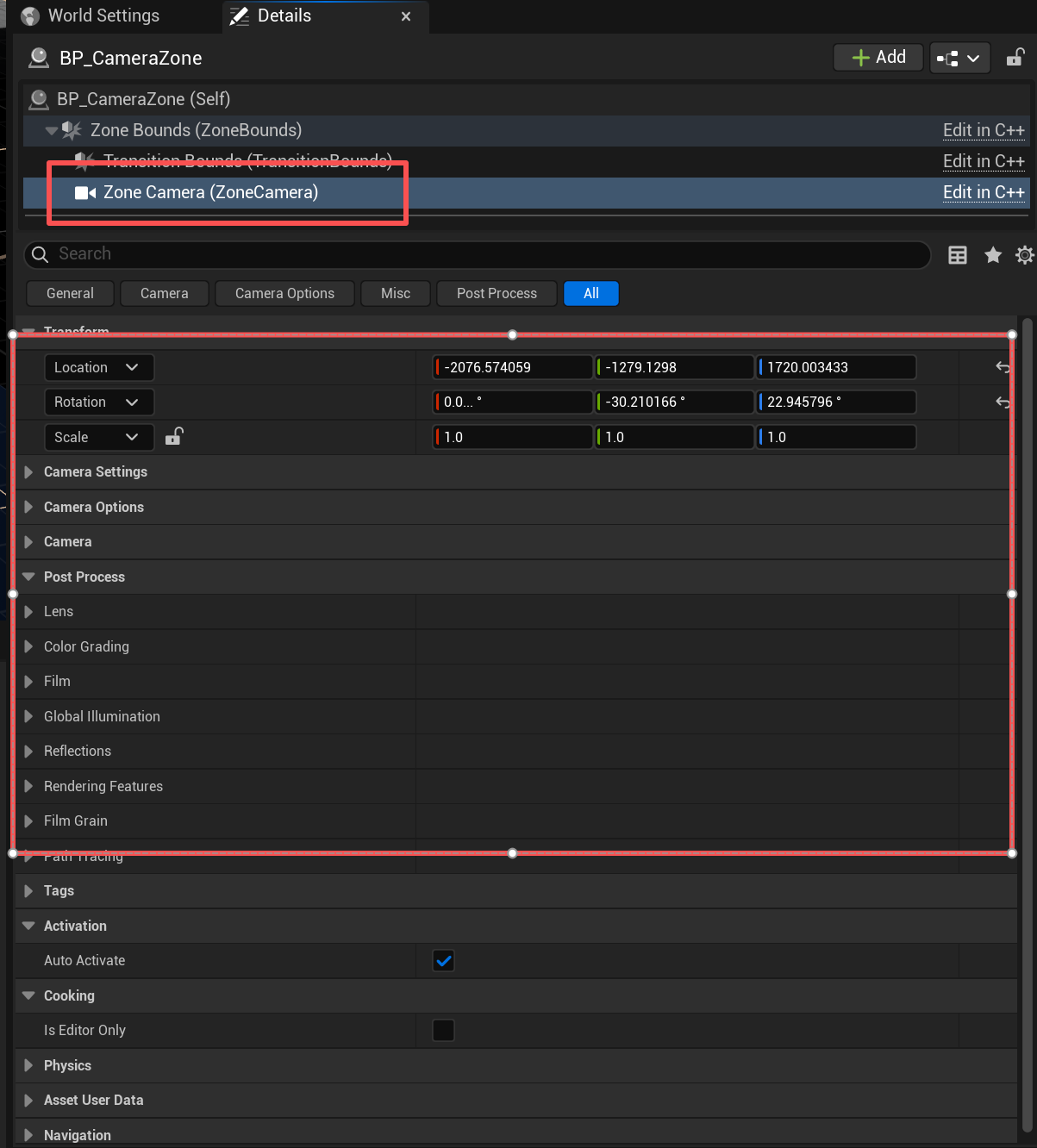
The numbers in that shot are from one particular zone in LV_2ndPlayable, not the values you should copy. Use these instead:
| Height | 800 |
| Pitch | -50° |
| FOV | 30 |
A new zone already has these. If you change the FOV on one zone, the player will see a zoom when walking into it. Keep them the same everywhere unless you really mean it.
Parameters
Select the zone in the World Outliner, then scroll the Details panel down to the Camera Zone section. Everything you can change lives in there:
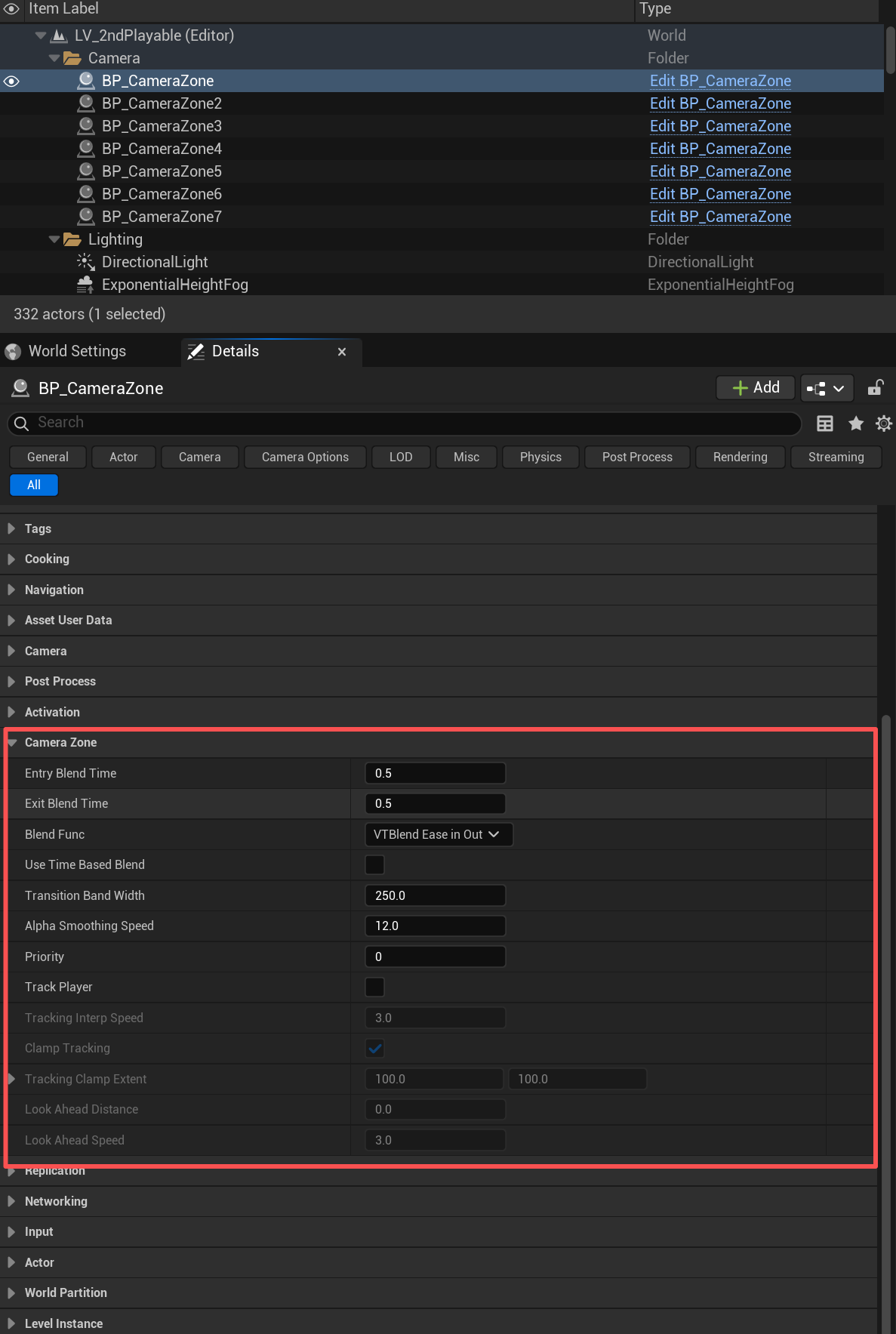
Greyed-out rows are switched off. Tracking Interp Speed and the rows under it only wake up once Track Player is ticked.
The ones you will actually use
| Parameter | Default | What it does |
|---|---|---|
Priority |
0 |
When zones overlap, the highest number wins. |
TransitionBandWidth |
250 |
How wide the fade area is. Bigger = more gradual. |
bTrackPlayer |
off |
Should the camera follow the player around inside the zone? |
bUseTimeBasedBlend |
off |
Switches to a timed fade instead of a walk-in fade. See below. |
Priority
Rules:
- Every level needs one big zone covering everything at Priority
0as a fallback. - Smaller zones get
1,2,3... - A small high-priority zone inside a big low-priority one works fine.
- Two zones with the same Priority share the camera. Where only their fade areas overlap, the camera crosses smoothly from one to the other. Where their boxes overlap, it sits halfway between both shots, so give one a higher Priority.
TransitionBandWidth
| Value | Feel |
|---|---|
400–600 |
Long and gentle. Good for open spaces. |
250 |
Default. Fine for most rooms. |
100–150 |
Snappy. Good for doorways and corridors. |
0 |
Instant switch, no fade. |
Remember the fade area sticks outside your box, so leave room for it. Two zones that look separate may have overlapping fade areas.
Player tracking
Turn on bTrackPlayer if the camera should follow the player instead of staying still.
| Parameter | Default | What it does |
|---|---|---|
TrackingInterpSpeed |
3.0 |
How fast the camera chases. Lower = lazier. |
bClampTracking |
on |
Stops the camera drifting too far from where you put it. |
TrackingClampExtent |
(100, 100) |
How far it may drift. |
LookAheadDistance |
0 |
Pushes the camera ahead of where the player is walking. 0 = off. |
LookAheadSpeed |
3.0 |
How fast look-ahead reacts. Lower = more elastic. |
Which to pick:
- Off — a fixed, composed shot. Best for puzzle rooms and reveals.
- On + clamp on — camera breathes with the player but stays near your composition. Use this for most rooms.
- On + clamp off — camera fully follows. For corridors and long walks.
LookAheadDistance around 100–200 shows the player more of what is ahead of them. Leave it at 0 if you are not sure.
The two fade modes
Walk-in fade (default)
The fade follows where the player is standing. Walk halfway in, the camera is halfway there. Walk back out, it goes back.
Feels natural, player stays in control. Use this for almost everything.
Tune with TransitionBandWidth.
Timed fade (bUseTimeBasedBlend on)
The fade follows a timer. Once the player crosses into the fade area it runs for EntryBlendTime seconds, however far in they walk. Walking back out fades it out over ExitBlendTime seconds, and walking back in mid-fade turns it around from where it is.
Feels like a cut in a film. Use it for deliberate moments — a doorway into a new area, a scripted reveal.
Tune with EntryBlendTime and ExitBlendTime (default 0.5 seconds each).
TransitionBandWidth greys out in this mode.
If unsure, leave it off.
How to add a zone
- Drag
BP_CameraZoneinto the level. - Scale
ZoneBoundsto cover the area. - Leave
ZoneCameraat the default height/pitch/FOV. - Set
Priority. Big background zone0, specific zones higher. - Adjust
TransitionBandWidthif you want the change more or less gradual. - Turn on
bTrackPlayerif the camera should follow the player. - Play and walk the transition both directions. Go in, come out, turn around halfway.
Black bars
A zone can letterbox the view: select ZoneCamera, tick Constrain Aspect Ratio, set an Aspect Ratio.
The bars fade in with the camera automatically — nothing else to set up.
Just be consistent: if one zone has bars and the next one does not, they appear and disappear as the player walks. Make that a choice, not an accident.
Something looks wrong?
| What you see | Fix |
|---|---|
| Camera zooms when walking between zones | The two ZoneCamera FOVs don't match. Set both to 30. |
| Camera sits halfway between two zones' shots | Their boxes overlap and they have the same Priority. Raise one. |
| Camera changes too early | TransitionBandWidth is too big for the space. |
| Feels like a hard switch, not a fade | TransitionBandWidth is 0, or bUseTimeBasedBlend is on. |
| Camera fades back on a timer when walking out, not step by step | bUseTimeBasedBlend is on. It fades out over ExitBlendTime. |
| Camera drifts away from your shot | bClampTracking is off, or TrackingClampExtent is too big. |
| Nothing happens entering the zone | A higher-priority zone is already active, or the player is above/below the box. |
Good to know
- The camera does not avoid walls. If something blocks the view, frame around it.
- The fade area only grows sideways, not up and down. A player on the floor above will not trigger the zone.
- Post-process settings on
ZoneCameracurrently don't work. Ask engineering if you need a per-zone look.
Change history
- 2026-10-02 — Gabriel Li — Equal-priority zones share the camera, and a timed fade fades out over
ExitBlendTimeand turns around on re-entry (CORE-011). - 2026-09-18 — Jeffery Hu — Added author contact line, screenshots for the parameter list, the Zone Camera transform and the Transition Bounds warning, and this change history.
- 2026-09-18 — Jeffery Hu — First version. Written against the camera code as of CL 116074, which replaced the inward
TransitionDepthwith the outwardTransitionBandWidthband.