Unreal Editor 101
Minimum editor vocabulary before content or recipe pages. Read this first if you have never opened Unreal.
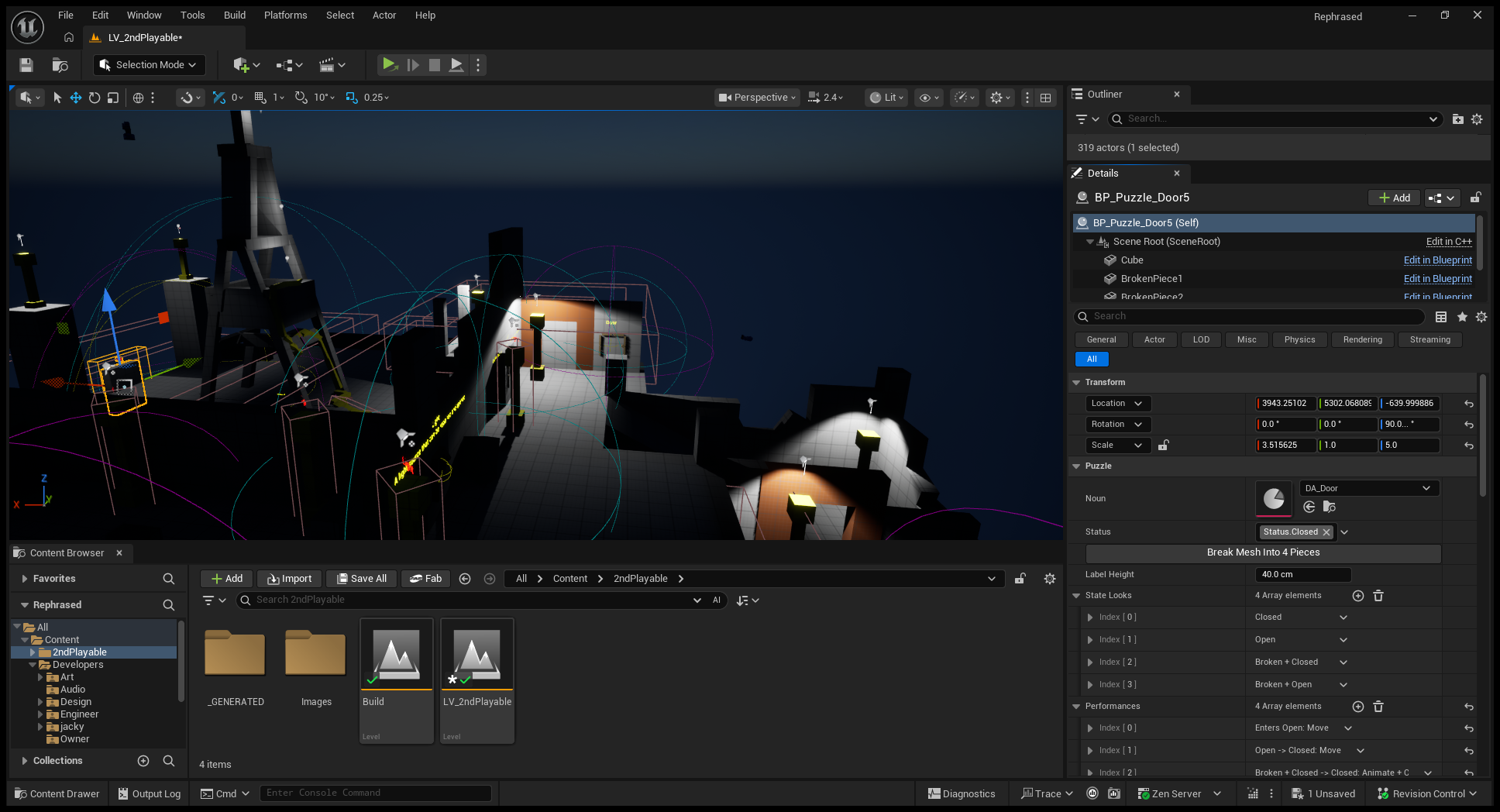
Panels you will use daily
| Panel | Purpose |
|---|---|
| Content Browser | Find and open assets under Content/ (Blueprints, levels, data assets, input actions). |
| Outliner | List of everything placed in the open level. Select actors here. |
| Details | Properties of the selected actor or asset. Designers tune most fields here. |
| Viewport | 3D view of the level. Place Actors mode adds objects from the palette. |
Save and play
- Save current level: Ctrl+S (or File → Save Current Level).
- Play In Editor (PIE): toolbar Play button or Alt+P. Runs the game inside the editor without packaging.
- Stop PIE: Esc or the Stop button.
After your first compile
- Editor opens without compile errors in the Output Log.
- In Content Browser → Content/2ndPlayable/, open LV_2ndPlayable (the current playable map).
- Press Play. You should spawn as the player character and move with WASD.
- If something fails, check
Saved/Logs/in the repo for the latest log file.
See Debug toggles for in-game test keys once PIE works.
Change history
- 2026-10-02 — Gabriel Li — Panel table uses the Outliner name and LV_2ndPlayable is described as the current playable map; added a screenshot of the editor panels (CORE-011).
-
2026-09-05 — Gabriel Li — Updated to the shipped hybrid Content structure (PR #19): PreProShowcase sandbox under
Content/Rephrased/Levels/Prepro/, Art/Gameplay/Levels layout, Imports isolation,Content/Developers/<Discipline>/<Name>/scratch space. -
2026-08-27 - Gabriel Li - Updated first-day sandbox wording to PreProRuneShowcase and added the personal playground expectation where relevant.
-
2026-05-23 — Gabriel Li — Rune Showcase plain text (no Glossary link); added as first Unreal basics page per onboarding audit.