Camera authoring
Camera authoring uses ACameraZoneActor actors placed in a level. Each zone defines a box overlap volume and a camera component. The URuneCameraSubsystem reads the zones at runtime and blends between them as the player moves. This page covers how to place and tune a zone for playable framing.
The engineering reference for the subsystem is in Camera system.
What a camera zone is
An ACameraZoneActor contains three visible components:
ZoneBounds, aUBoxComponentthat defines the volume where this zone applies.TransitionBounds, aUBoxComponentthat isZoneBoundsgrown outward byTransitionBandWidthon X and Y. It is the zone's overlap trigger and sizes itself.ZoneCamera, aUCameraComponentthat defines the viewpoint for the zone.
When the player enters a zone's transition band, the subsystem adds the zone as a layer with its own weight. Each tick the camera is a weighted mix of the zones the player is in and the follow camera: higher priority zones claim their share first, and zones of equal priority share by weight.
Zones are volume-based, not point triggers. ZoneBounds is where the zone fully owns the camera, and the band TransitionBandWidth wide around it is where the camera fades in and out.
When to add a zone
Add a zone when the player needs a different framing for a new space, a puzzle, a reveal moment, or a set piece.
Do not add a new zone when the existing zone already frames the space acceptably. The meeting note for the Sept 2 design sync says the camera system should minimize movement: mostly follow the player, with occasional slight focus.
Every level should have a map-wide base zone so the camera has a fallback when no smaller zone overlaps. Give that base zone the lowest priority.
Placing and aiming a zone
- Drag an
ACameraZoneActorinto the level. - Position and size
ZoneBoundsto cover the area where this framing should be fully active. The transition band grows around it automatically; where two neighbouring zones' bands overlap, the camera crosses straight from one to the other. - Position and rotate
ZoneCamerato the desired high-angle view. - Match the shared FOV, pitch, and height convention. The subsystem does not enforce a global FOV, pitch, or camera height value. Each
ZoneCameramust be authored to the same values as the other zones. A mismatched FOV is visible as a subtle zoom while walking between zones. - Preview from the zone's camera in the editor and compare against nearby zones before submitting.
For a step-by-step reference, see Adding a camera zone.
Priority
Priority is an integer. Higher values win.
- A map-wide base zone takes the lowest priority, conventionally
0. - Interior, puzzle, and reveal zones take higher priorities so they become active when the player enters them.
- Nested zones work: a higher-priority small zone inside a lower-priority large zone fades in across its band and owns the camera inside its
ZoneBounds. - A lower-priority zone only gets the share a higher-priority zone leaves, so it stays out of the camera while a higher-priority zone is fully on.
- Zones of equal priority share the camera by weight, which gives a smooth crossing where their bands overlap.
Use priority to express focus. A deliberate reveal moment gets a high priority so it controls the camera for as long as the player stands in its volume.
Entry blending: position-based vs time-based
The bUseTimeBasedBlend property chooses how a zone fades in and out:
- Position-based zones use
TransitionBandWidthandAlphaSmoothingSpeed. - Time-based zones use
EntryBlendTimeto fade in andExitBlendTimeto fade out.
Position-based entry
bUseTimeBasedBlend = false, the default.
The zone's weight follows the player's position across the transition band: 0 at the band's outer edge, 1 at the ZoneBounds surface, eased in between. AlphaSmoothingSpeed smooths it so the camera does not jump with every step. Walking back out fades the zone out along the same band.
This mode feels like walking naturally into a new framing. The player controls the pacing by how far they walk into the band.
Tuning:
- Raise
TransitionBandWidthwhen the blend finishes too abruptly. - Lower
TransitionBandWidthwhen the blend stretches too far before the camera settles;0changes the camera at theZoneBoundsedge. - Raise
AlphaSmoothingSpeedwhen the camera feels laggy but watch for micro-jitter. - Lower
AlphaSmoothingSpeedwhen the camera feels twitchy, at the cost of slight lag.
Use position-based entry for continuous walk-through areas.
Time-based entry
bUseTimeBasedBlend = true.
The zone fades in over EntryBlendTime once the player enters its trigger, whatever they do next, and fades out over ExitBlendTime after they leave. Walking back in mid-fade turns it around from where it is.
This mode feels like a committed move to a new framing. Use it for doorways, deliberate reveals, or moments where the camera should land on a composition regardless of how the player moves through the volume.
Tuning:
- Raise
EntryBlendTimefor slower, more dramatic reveals. - Lower
EntryBlendTimefor snappier transitions.
Leaving a zone
A position-based zone fades out across its band as the player walks away. A time-based zone fades out over its ExitBlendTime, default 0.5. Either way, the camera hands back to whatever zones or follow camera remain underneath.
Player tracking, clamps, and look-ahead
A zone can follow the player instead of staying fixed at its authored camera position.
bTrackPlayer: set true to enable tracking.TrackingInterpSpeed: how fast the camera moves toward the player's tracked position.bClampTracking: default true. Clamps the tracking offset toTrackingClampExtent.TrackingClampExtent: a 2D half-extent in world units around the authored camera position.LookAheadDistance: how far the camera leads ahead of the player based on input direction. Set0to disable.LookAheadSpeed: how quickly the look-ahead offset responds to input changes.
Raise this when:
TrackingInterpSpeed: the camera lags behind the player while tracking. Lower it if the camera feels twitchy.TrackingClampExtent: the camera stops following too early near the edge of the intended composition. Lower it if the camera drifts too far from the authored framing.LookAheadDistance: the player is moving quickly or through a long sightline and needs to see where they are going. Keep0for static puzzle framing or when the camera must not anticipate.LookAheadSpeed: the look-ahead feels sluggish and you want a sharper lead. Lower it for a lazier, more elastic feel.
Look-ahead is applied after the tracking clamp, so the camera can peek past the clamp boundary without disabling the clamp.
Leave bTrackPlayer false when the zone should hold a fixed composition, such as a mural reveal or a window view.
Requesting a cinematic
Cinematic control is a stack on URuneCameraSubsystem. Set pieces and puzzle actors push a camera target, then pop it to return to zone control.
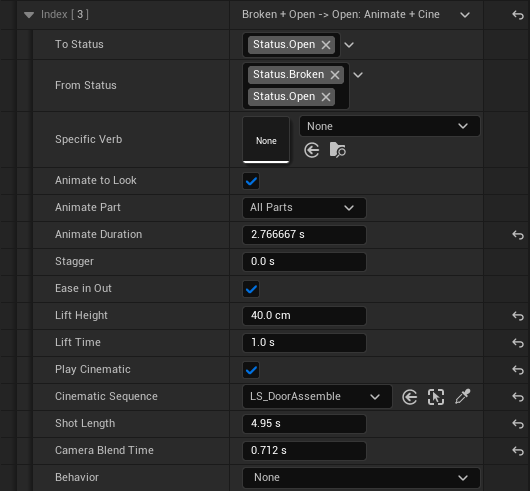
For a puzzle cinematic, tick Play Cinematic on a performance of the ARunePuzzleActor:
- Set the row's Cinematic Sequence, on the placed puzzle, to the Level Sequence Actor. Build the camera cut inside that sequence; the performance reads the camera from it. The sequence animates the camera only: the puzzle moves its own parts.
- Set Camera Blend Time for how long the view takes to blend back to the player's camera, default
0.6. - Set Shot Length to the sequence's length. The view blends back to gameplay when it expires.
- Tick Animate to Look and set Animate Duration, Lift Height, and Lift Time for how the puzzle's parts move during the shot.
- A row with no Cinematic Sequence plays no shot and keeps the gameplay camera.
While a cinematic is active it holds the view, and the zone layers keep updating underneath. When the cinematic stack empties, ResumeGameplayCamera blends the view back to the zones the player is in.
Framing rules
The level docs require camera compositions that support the puzzle without giving away the answer.
- Keep the clue, the active runes, and the object that changes together in one readable composition.
- Move the camera to reveal a result, not to explain it. The 3010 Town in Sunlight window framing demonstrates this: the window gives a straight shot of the final staircase state. The camera shows the changed state rather than a diagram of how it happened.
- Do not show a whole large environmental rune before the design wants it revealed. The Garden and Empty Space level docs define what the camera must and must not reveal.
- When solving a puzzle changes a distant object, the camera should let the player see that change at the moment it happens, or through a deliberate window view.
- A mural or environmental rune reveal stays hidden until the design moment. The camera must not pan past it early.
Checklist before review
- [ ]
ZoneBoundscovers the intended walkable area, and its transition band overlaps the bands of neighboring zones. - [ ]
ZoneCameramatches the shared FOV, pitch, and height convention used by nearby zones. - [ ]
Priorityis set: map-wide base zone at0, interior and reveal zones higher. - [ ] Blend mode is chosen and tuned:
bUseTimeBasedBlend, thenEntryBlendTime/ExitBlendTimeorTransitionBandWidth/AlphaSmoothingSpeed. - [ ]
ExitBlendTimefeels acceptable when leaving the zone. - [ ] If
bTrackPlayeris true,TrackingInterpSpeed,bClampTracking,TrackingClampExtent,LookAheadDistance, andLookAheadSpeedare tuned. - [ ] Any Play Cinematic performance has its Cinematic Sequence set with a camera cut inside it, a Camera Blend Time and Shot Length set, and control returns to gameplay.
- [ ] The framing rules from the level docs hold in PIE.
Sources
- Level: 3020 Garden - https://docs.google.com/document/d/1xbYg32ZYbNWm_5nnSJ1bBCkEZdLa8bPtfIC5XhvktIw/edit. Covers what the garden camera must and must not reveal.
- Level: 24/40 Empty Space - https://docs.google.com/document/d/1UWWCWE2nFC-GM4yC9FjAt9zc4SlHdPZjs9VrQV9aEt0/edit. Covers the Empty Space framing constraints.
- Level: 3010 Town in Sunlight - https://docs.google.com/document/d/16rkJDmdrQ8lNth0eioLKGIiT9sIMgs3z29JcUUZjIfY/edit. Covers the window framing and camera reveal requirements for the town staircase.
- Level board (Figma) - https://www.figma.com/board/m6RTFDNo8SBwmDnmJN8A1f/Rephrased_Level. Reference for town layout and zone boundaries.
- Level guide deck - https://docs.google.com/presentation/d/1MUxH9AApgpOdOkbuJlfCidM-aFq-JktQAMDrBOXXP74/edit. Camera expectations and visual direction per level.
Change history
- 2026-10-02 — Gabriel Li — A puzzle cinematic is the Play Cinematic checkbox on a performance, with its Cinematic Sequence and Shot Length in the row, and the sequence animates the camera only. Listed
TransitionBounds, and zone layers keep updating under a cinematic; added editor screenshots (CORE-011). - 2026-10-01 — Gabriel Li — Moved the cinematic camera into the Cinematic Sequence (CORE-011).
- 2026-09-29 — Gabriel Li — Camera authoring matches weighted zone layers, the transition band, and reversible time-based fades.
- 2026-09-29 — Gabriel Li — Puzzle cinematics are authored as Play Sequence performances (CORE-009).
- 2026-09-17 — Gabriel Li — Rewrote camera authoring to match
ACameraZoneActorandURuneCameraSubsystemfields, documented position-based vs time-based entry, tracking, look-ahead, cinematic requests, and framing rules from the level docs.