Adding a camera zone
Recipe for placing an ACameraZoneActor and tuning it. No code — pure designer/engineer task in the level. For internals, see Camera system.
Place the actor
- From the Place Actors panel, drag
ACameraZoneActor(or a Blueprint subclass likeBP_CameraZoneinContent/Rephrased/Gameplay/Core/Camera/) into the level. - The actor has two components you tune in the viewport:
ZoneBounds(UBoxComponent) — the zone's core volume. Scale to cover the area where this camera should be active.TransitionBounds, the overlap trigger around it, sizes itself fromZoneBoundsandTransitionBandWidth.ZoneCamera(UCameraComponent) — the camera itself. Position, rotate, and set FOV to define the viewpoint.
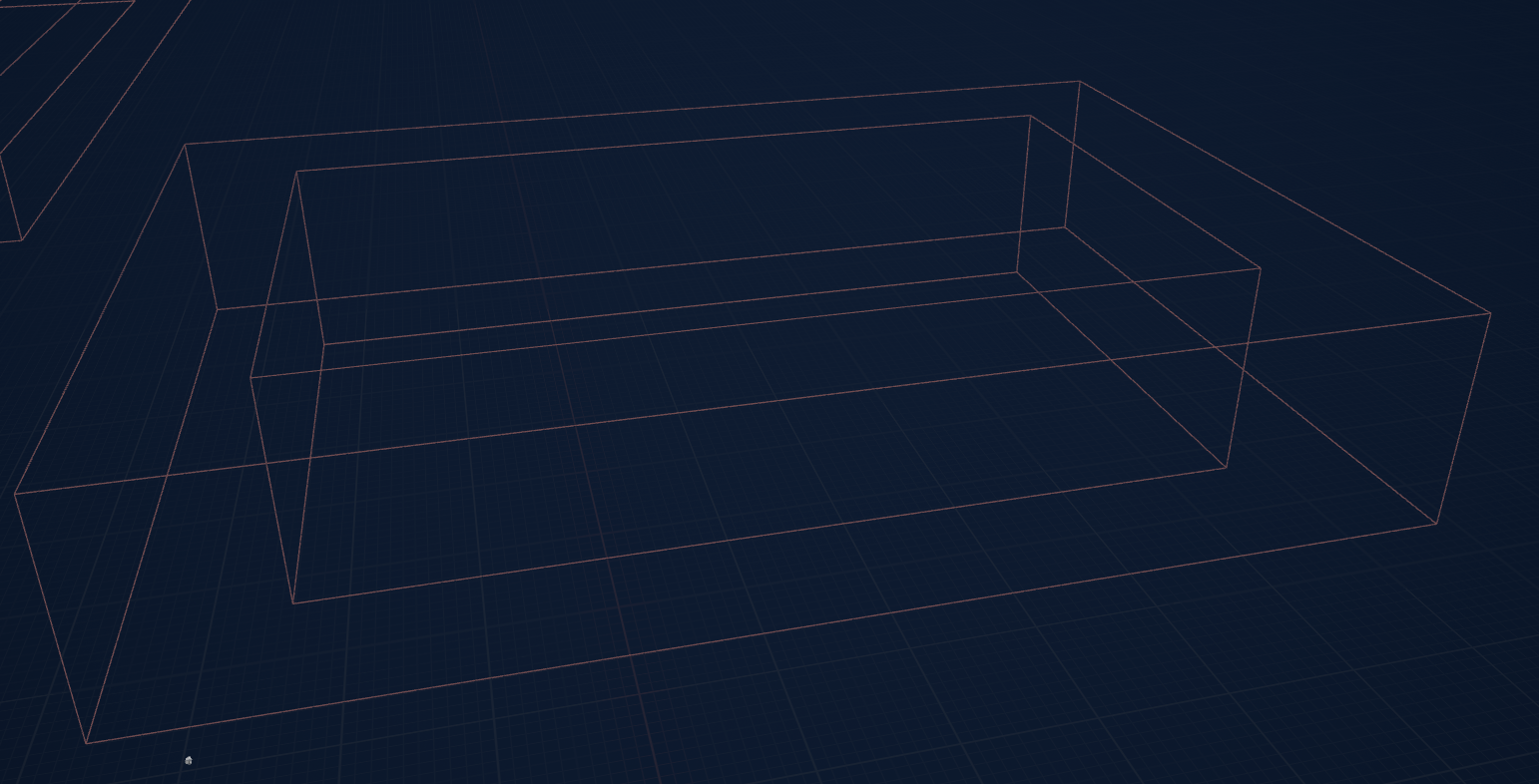
Position the camera
The project's baseline:
- 800 units above the zone center.
- Pitched -50 degrees (steep top-down oblique).
- FOV 30 (narrow).
Match this unless the zone has a deliberate reason to differ. Wildly different FOVs make zone transitions visible.
Set priority
Priority (int32) decides which zone wins when the player overlaps multiple. Higher number = higher priority.
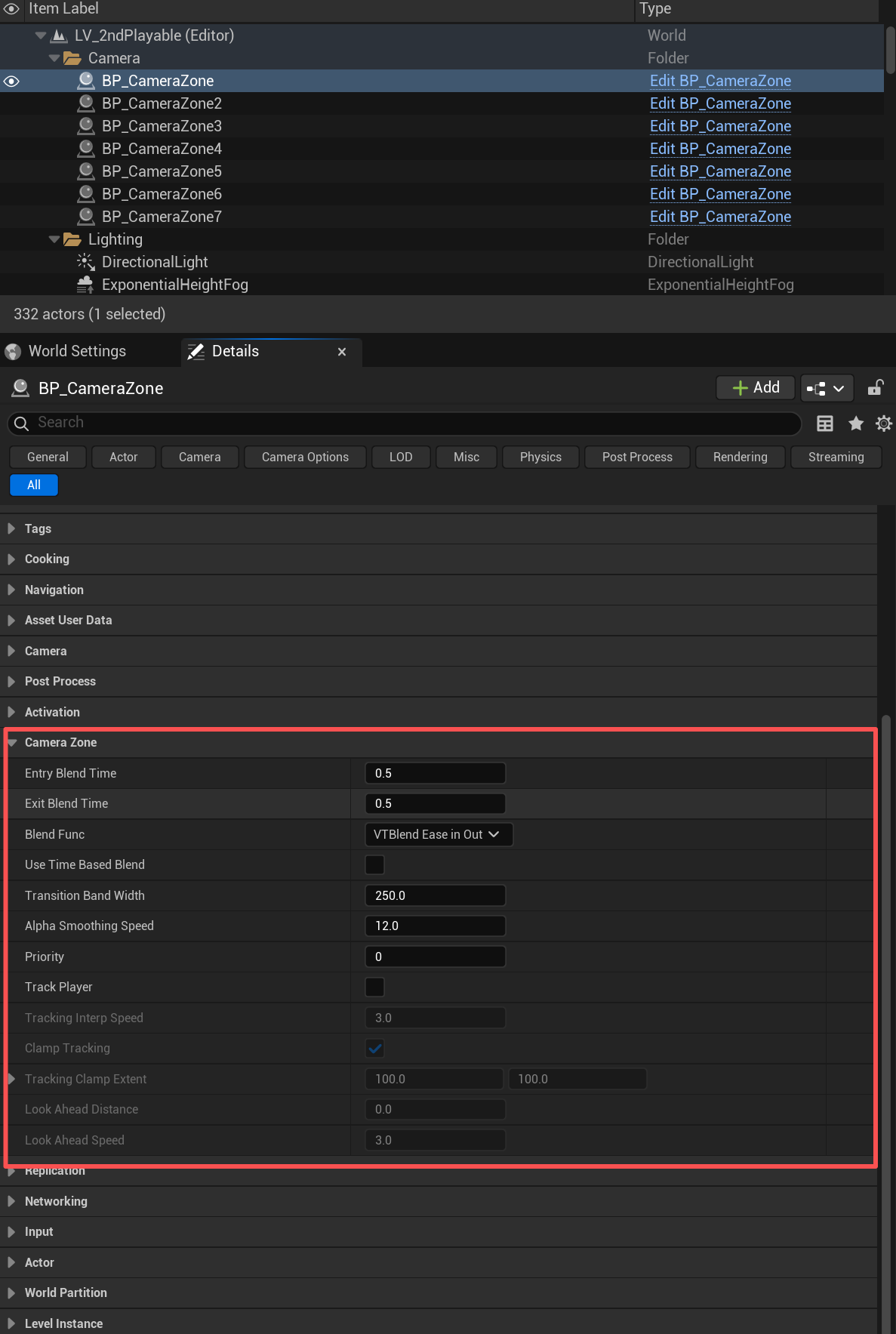
Convention:
- A "main room" zone covering the whole space → priority 0.
- Smaller zones for specific puzzle stations or viewpoints → priority 1, 2, etc.
Two overlapping zones with the same priority share the camera, weighted by how deep the player is in each. Give a zone a higher priority when it should take over.
Pick a blend mode
bUseTimeBasedBlend toggles between two strategies:
- Position-based (default, false) — the camera blends as the player crosses the transition band around
ZoneBounds. Stepping back reverses the blend. ConfigureTransitionBandWidth(default 250 units) andAlphaSmoothingSpeed(default 12). Best for organic feel where the camera shouldn't snap. - Time-based (true) — the camera fades in over
EntryBlendTimeand out overExitBlendTime, regardless of how the player moves. Best for committed narrative moves ("you turned the corner, the camera changes now").
If unsure, start with position-based and the defaults.
Player tracking (optional)
Set bTrackPlayer = true if the camera should follow the player's X/Y movement while they're inside the zone. Two sub-modes:
- Clamped (
bClampTracking = true, default) — camera offset is bounded byTrackingClampExtent(default 100,100). Camera moves a little but stays roughly where you put it. - Unclamped — camera follows freely. Use when the zone covers a large traversal area and the camera should track the player like a leash.
Tune TrackingInterpSpeed (default 3.0) for follow responsiveness. Higher is snappier; lower is more cinematic but laggy.
Cinematic override compatibility
The zone is automatically suppressed while a cinematic camera is active, such as a pedestal focus, the star view, or a puzzle's Play Cinematic shot. You don't need to do anything — the cinematic takes priority.
Common configurations
A puzzle station inside a larger room
- Big room zone at priority 0, time-based blend false, no tracking.
- Small puzzle zone at priority 1, position-based blend, bTrackPlayer = false (the puzzle frame should be fixed).
A long traversal corridor
- Single zone covering the corridor, position-based blend, bTrackPlayer = true, unclamped tracking. Camera leashes along.
A reveal moment ("walk through this archway")
- One zone before the archway with the entry view. One zone after with the reveal view, bUseTimeBasedBlend = true, EntryBlendTime = 1.5 for a deliberate transition.
Spawn-in-zone handling
If the player spawns already inside the zone, the overlap callback won't fire normally. The actor handles this with CheckInitialOverlaps in BeginPlay and again on the next tick — it queries for already-overlapping pawns and notifies the subsystem with BlendTimeOverride = 0 so the camera snaps without a visible blend from nowhere. No designer action needed; just be aware that level-start positioning is honored.
Common mistakes
- Nesting a small zone at the same priority as the zone around it. Equal priorities share the camera by weight; give the inner zone a higher priority when it should take over.
- Time-based blend on a zone the player crosses quickly. The camera keeps fading for the full blend time. Use position-based for high-traffic zones.
bTrackPlayeron a zone with a tightTrackingClampExtent. The camera barely moves, no real tracking. Either widen the clamp or drop tracking entirely.- Z-axis blending: the system ignores Z in the blend weight (only X/Y matter). Don't expect the camera to ramp as the player goes up/down stairs unless the zone bounds wrap that geometry tightly in X/Y too.
Verifying your work
- Run the level.
- Walk through the zone boundary. Camera should blend smoothly to the new viewpoint.
- Walk back. Position-based zones reverse the blend; time-based zones do not (this is by design).
- If overlapping, verify the higher-priority zone wins.
- Trigger a rune command whose performance plays a cinematic (for example, Repair on a Door with Play Cinematic ticked and a Cinematic Sequence set) — the sequence's camera should take over and your zone should resume cleanly when it ends.
Source files
Source/Rephrased/CameraZoneActor.hSource/Rephrased/RuneCameraSubsystem.h
See also Camera authoring for the original design doc.
Change history
- 2026-10-02 — Gabriel Li — Equal-priority zones share the camera by weight, the reveal example uses
EntryBlendTime,ZoneBoundsis the core volume withTransitionBoundsas the trigger, and the cinematic notes name the pedestal, star view, and Play Cinematic shots; added editor screenshots (CORE-011). - 2026-09-29 — Gabriel Li — Pointed the Blueprint example at
BP_CameraZone. - 2026-09-17 — Gabriel Li — Verification step uses a rune command presentation.
- 2026-05-08 — Gabriel Li — Added baseline change history section for weekly wiki maintenance.